Authentication
LoreMind uses API keys for authentication. This guide covers the different key types and how to use them.
API Key Types
Editor Key (sk_editor_*)
Used for game engine editor tooling:
- Populates Entity Mind dropdowns in editor UI
- Fetches project configuration
- Powers SDK control panels and setup wizards
- Scans game files and uploads for lore extraction
Never include in builds. These keys should only exist in your development environment, not shipped games.
The endpoints an Editor Key can call are tooling APIs and may change between SDK releases; see the API Reference stability note. Your game's runtime should only ever use a Server Key.
Server Key (sk_server_*)
Used for NPC interactions:
- Generate NPC responses via
/npc/interactendpoint - Required for all conversation requests
- Supports
playerIdfor long-term memory
Keep secure. In production, store on your backend - never in game builds.
Usage Patterns
Editor Testing
During development, SDKs use your Server Key for testing:
- Store the Server Key in the SDK's control panel
- The SDK saves it locally (not included in builds). In the Unity SDK, the transport that sends it exists only in the Editor and Dedicated Server builds, never in game client builds
- NPC interactions work immediately in editor play mode
// Works in Editor - SDK handles auth automatically
var response = await npc.RespondAsync("Hello!");
Production
When you ship your game, your backend holds the API key:
- Store the Server Key in environment variables on your backend
- Your game calls your backend (not LoreMind directly)
- Your backend adds the key and forwards to LoreMind
flowchart LR
  client["Game Client"]:::neutral --> backend["Your Backend<br/><small>adds key</small>"]:::neutral --> api["LoreMind API"]:::runtime

  classDef runtime fill:#d96a57,stroke:#a03f37,color:#2b0e0a
  classDef neutral fill:transparent,stroke-dasharray:4 3
See Server Integration for implementation details.
Creating API Keys
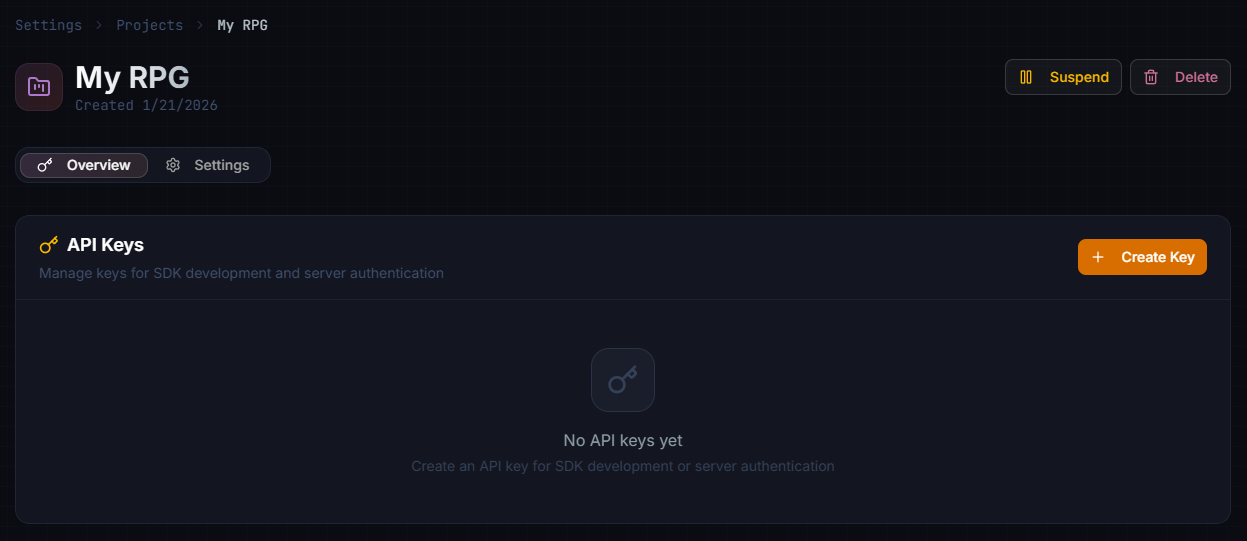
- Go to Projects in the dashboard
- Click on your project to view its API Keys
- Click Create API Key
- Choose Editor Key or Server Key
- Copy immediately (shown only once)
Making Authenticated Requests
Include your API key in the Authorization header:
curl -X POST https://loremind.peekgames.dev/api/loremind/v1/npc/interact \
  -H "Authorization: Bearer sk_server_your_key_here" \
  -H "Content-Type: application/json" \
  -d '{
    "text": "Hello!",
    "entityMindId": "em_abc123",
    "playerId": "player_001"
  }'
Player Identity
For long-term memory and per-player rate limits, include playerId in requests:
{
  "text": "Hello!",
  "entityMindId": "em_abc123",
  "playerId": "steam_76561198012345678"
}
Use a stable identifier, such as a platform ID, game account ID, or persistent UUID. What makes a good or bad playerId (and why session IDs, emails, and device IDs don't work) is covered in Long-Term Memory.
Rate Limits
NPC interactions are rate limited per minute, both per-player (using playerId) and per-project. Defaults and 429 handling are covered in Errors & Rate Limits.
Your backend can implement additional rate limiting:
// Server-side rate limiting example
if (player.NPCInteractionsToday > dailyLimit)
{
    return TooManyRequests("Daily NPC limit reached");
}
Security Best Practices
Key Storage
- Development: Store Server Key in the SDK's Control Panel (kept in Unity's per-project user settings, the
UserSettings/folder; keep that folder out of version control) - Production: Use environment variables or a secrets manager
- Never: Commit keys to version control or include in builds
Key Rotation
Rotate a key right away if it may have been exposed, for example in a game build or a public repository, and periodically otherwise:
- In your project's API Keys, click Rotate on the key
- Choose when the old key stops working: immediately, or in 1 hour, 24 hours or 7 days
- Copy the new key (shown only once) and put it on your backend
The new key keeps the old key's name and type, and the same expiry length. The old key stays in the list, renamed with the time it was replaced, until it stops working. Only team owners and admins can rotate or revoke a Server Key. A key can be rotated only once: to replace it again, rotate its new key.
Signed Players
To keep player memories safe even if a Server Key leaks, require your backend to sign each player. See Signed Players.
Monitoring
- Set up billing alerts for unusual usage
- Monitor request patterns in the dashboard
- Use
playerIdto track per-player usage
Error Responses
Authentication failures return 401 Invalid API key (key missing, malformed, or revoked) or 403 Invalid authentication (an Editor Key used where a Server Key is required). A team that hasn't accepted updated Terms of Service gets 403 Terms of Service not accepted. The full error reference, including rate-limit responses, is in Errors & Rate Limits.
Next Steps
- Backend Integration - Set up production authentication
- Server Integration Guide - Complete architecture patterns
- Long-Term Memory - Player memory across sessions