Lore Documents
Give your NPCs knowledge about your game world.
Overview
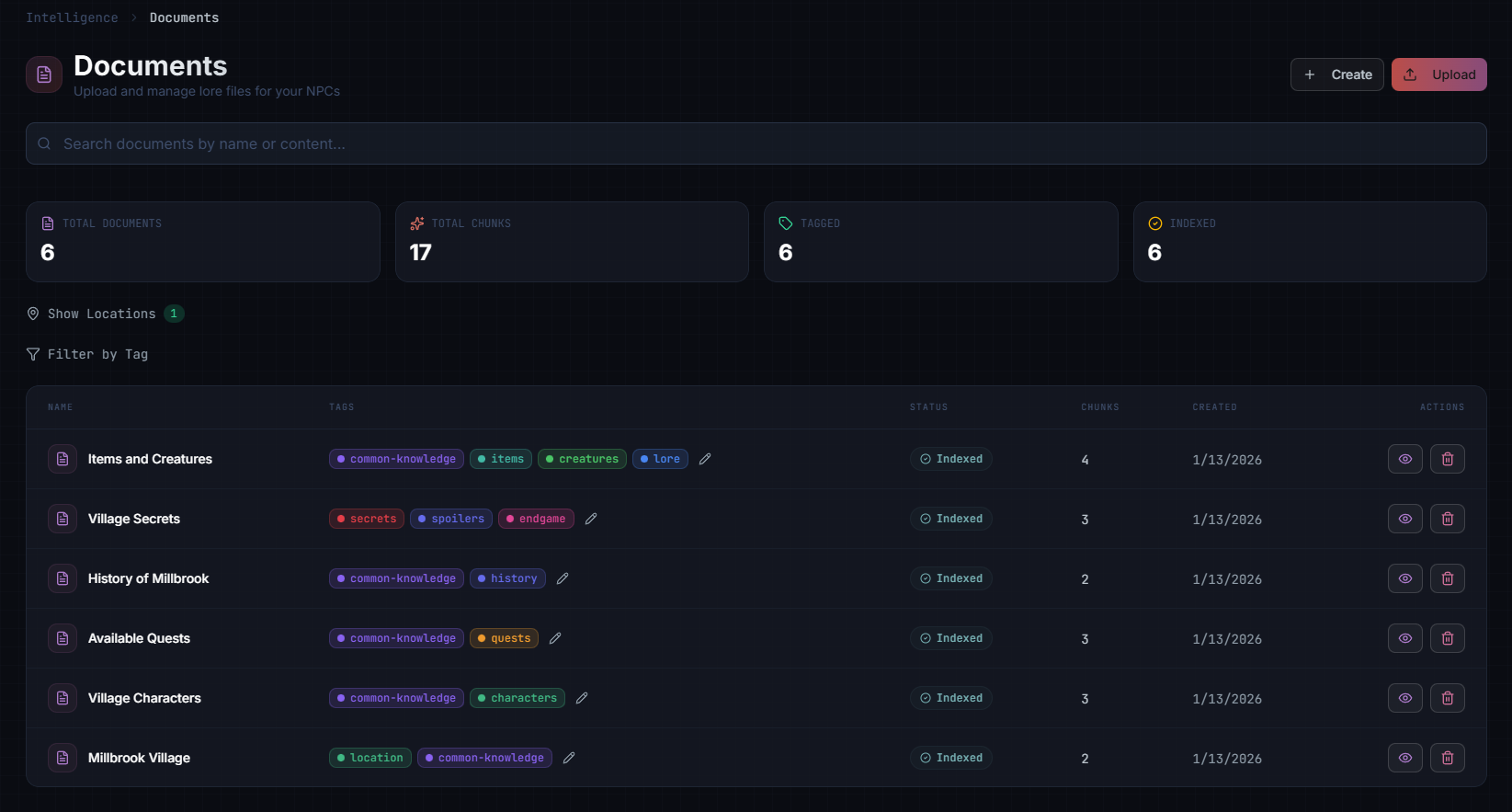
Documents hold all the lore and information your NPCs can reference:
- World history and events
- Location descriptions
- Items and artifacts
- Factions and politics
- Creatures and monsters
- Legends and rumors
When players talk to NPCs, LoreMind automatically retrieves relevant lore based on what's being discussed.
Accessing Documents
- Go to Documents in the dashboard
Adding Documents
Uploading Documents
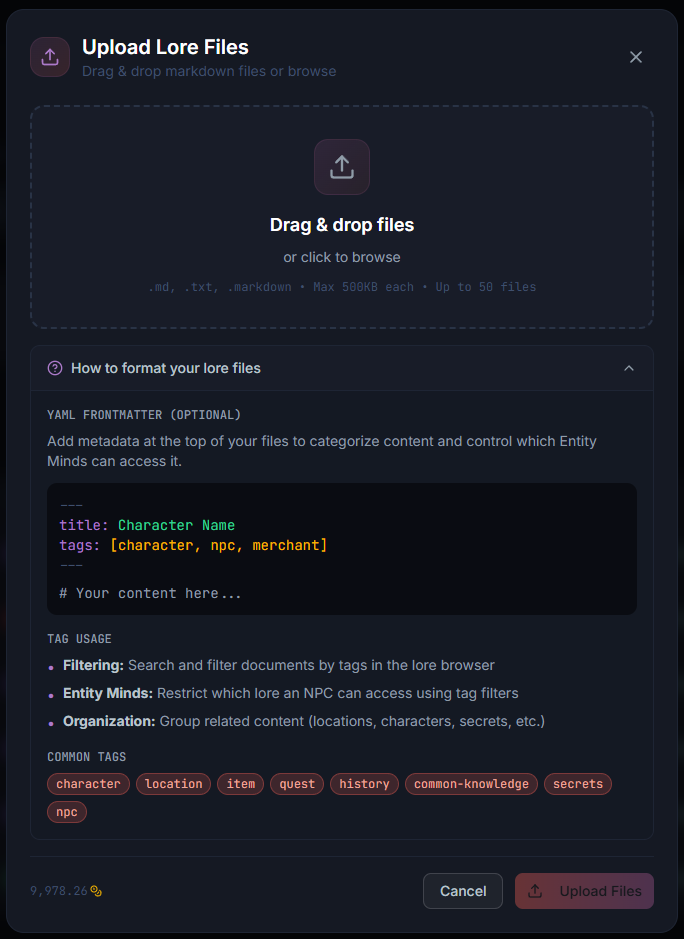
Documents are uploaded as Markdown files with optional YAML frontmatter:
- Click Upload in the Documents tab
- Drag and drop your
.md,.txt, or.markdownfiles - Click Upload Files
File Format
Use YAML frontmatter to set title and tags:
---
title: The Ashwood Forest
tags: [location, forest, danger]
---

A dense woodland east of Millbrook Village. Travelers avoid it after dark
due to rumors of strange creatures. The forest is home to rare medicinal
herbs that fetch high prices at market.
If you omit frontmatter, the filename becomes the title.
Document Format
Write lore as if describing to someone unfamiliar with your world:
Good example:
The Dragon War (Year 847-852)

The Dragon War was a devastating five-year conflict between the united human
kingdoms and a coalition of dragons led by Scorath the Elder. The war began
when Scorath's mate was killed by hunters from the northern village of Thornhaven.

Key battles:
- The Burning of Thornhaven (847) - Scorath's first attack destroyed the village
- The Defense of Riverwatch (849) - First human victory using enchanted ballistae
- The Final Stand at Dragon's Hollow (852) - King Aldric's army defeated Scorath

The war ended with the Dragon Accords, a peace treaty that created protected
dragon territories in the mountains. Today, dragons are rarely seen in
human lands.

Notable figures:
- Scorath the Elder - Lead dragon, killed at Dragon's Hollow
- King Aldric the Brave - United the kingdoms, died of wounds after final battle
- Grom the Smith - Forged the enchanted weapons that turned the tide
Avoid:
- Single-sentence entries (too little context)
- Novel-length documents (split them into focused documents)
- Game mechanics descriptions (NPCs shouldn't know about "HP" or "damage")
Recommended Document Length
| Type | Ideal Length | Example |
|---|---|---|
| Location | 100-300 words | Town description, notable buildings, atmosphere |
| Character | 150-400 words | Background, personality, relationships |
| Historical event | 200-500 words | What happened, key figures, consequences |
| Item/Artifact | 50-150 words | Description, history, powers |
Scanner Import
Instead of manually writing lore documents, you can use the Lore Scanner to automatically extract lore from your existing game files. The scanner reads dialogue scripts, data files, and configuration files, then uses AI to identify and structure lore content.
You review the extractions and choose which ones become Lore Documents. Once committed, they work exactly like uploaded documents and become available for NPC interactions.
Organizing with Tags
Tags control which NPCs can access which lore. Think of them as knowledge domains.
Creating Tags
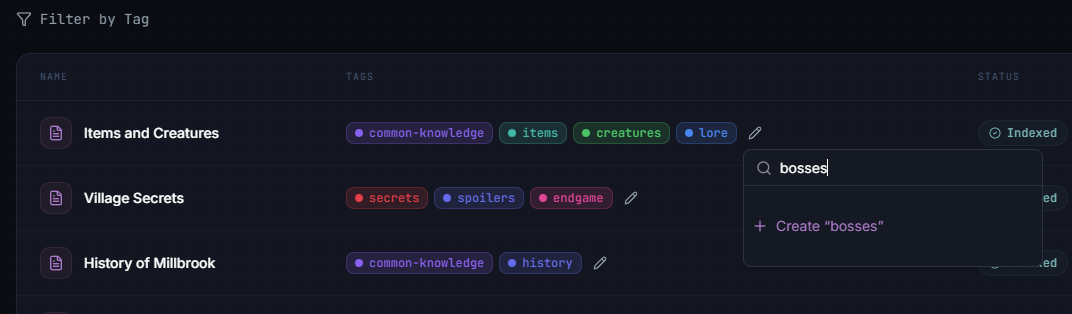
Tags are created inline when editing a document:
- Click on a document in Documents
- Click the tag edit icon next to the existing tags
- Type a new tag name (e.g., "bosses")
- Click Create "bosses" to add it
Assigning Tags to Documents
Each document can have multiple tags:
Document: "The Dragon War"
Tags: history, dragons, military, thornhaven, riverwatchDocument: "Blacksmithing Techniques"
Tags: blacksmithing, crafting, metalworkAssigning Tags to Entity Minds
In Entity Minds, select which tags an NPC can access:
Innkeeper Garrick
Knowledge Tags: village-life, rumors, local-history, tavern

Grom the Blacksmith
Knowledge Tags: blacksmithing, weapons, dragon-war, metalwork
How Tag Filtering Works
When a player asks a question:
- LoreMind searches documents with matching tags
- The NPC responds using the most relevant ones
Example:
Player asks blacksmith: "What do you know about the dragon war?"
- Blacksmith has tags:
blacksmithing,weapons,dragon-war,metalwork - Search finds "The Dragon War" document (has
dragon-wartag) - Blacksmith can discuss it: "Aye, I remember. My grandfather Grom forged the enchanted weapons that helped turn the tide."
Player asks innkeeper same question:
- Innkeeper has tags:
village-life,rumors,local-history,tavern - Search doesn't find the dragon war document (no matching tags)
- Innkeeper responds with general knowledge: "I've heard stories, of course. Everyone has. But I was just a child then."
Tag Strategies
By Topic
Organize knowledge by subject area:
history, geography, magic, religion, politics, economyPros: Intuitive, easy to manage Cons: Generalist NPCs need many tags
By Location
Organize by where NPCs live:
capital-city, thornhaven, riverwatch, mountain-regionPros: NPCs know their area well Cons: May need cross-references for travelers
By NPC Role
Create tags for specific NPC types:
merchant-knowledge, guard-knowledge, scholar-knowledgePros: Easy to assign, consistent knowledge per role Cons: Less granular control
Hybrid Approach (Recommended)
Combine strategies:
# Location
capital-city, thornhaven, riverwatch

# Topic
blacksmithing, magic, history

# Role
merchant-common, guard-common

# Quest-specific
quest-missing-merchant, quest-dragon-slayer
Best Practices
Write for NPCs, Not Players
Good: "Thornhaven was destroyed by dragon fire in year 847. Few survived." Avoid: "Thornhaven is a quest location where players find the first clue."
Include NPC Perspectives
Good: "The merchant guild considers the new taxes unfair. Many have raised prices." Better: Different documents for different factions' perspectives.
Keep Documents Focused
One topic per document helps NPCs find the right lore.
Instead of:
Document: "Everything About Thornhaven"
(2000 words covering history, geography, people, economy...)
Use:
Document: "Thornhaven - Overview" (200 words)
Document: "Thornhaven - The Fire of 847" (300 words)
Document: "Thornhaven - Notable Residents" (250 words)
Document: "Thornhaven - Economy and Trade" (200 words)
Use Descriptive Titles
Titles help you organize and help the AI understand context:
Good: "The Dragon War (847-852)" Avoid: "History 1"
Avoid Spoilers for Quest NPCs
Use quest-specific tags and only assign them to relevant NPCs:
Document: "The Missing Merchant - Truth"
Tags: quest-missing-merchant-spoilers
(Only assign to NPCs who should know the resolution)
Updating Lore
Editing Documents
- Click on a document in Documents
- Make changes
- Click Save
Changes take effect for new conversations immediately.
Document Versions
LoreMind doesn't track versions, but you can:
- Keep old versions with "(deprecated)" in title
- Use external version control for your lore content
- Export via API for backup (see below)
Exporting Documents
To back up your lore or feed custom tooling, export documents (with their full content) using an Editor API key:
curl "https://loremind.peekgames.dev/api/loremind/v1/lore/documents/export?limit=50" \
  -H "Authorization: Bearer sk_editor_your_key"
See GET /lore/documents/export for details. For bulk imports, upload files through the dashboard or use the Lore Scanner.
Troubleshooting
NPC doesn't know something it should
- Check if a document with that information exists
- Verify the document has appropriate tags
- Verify the Entity Mind has those tags assigned
- Test in Playground with verbose logging
NPC knows too much
- Remove broad tags from the Entity Mind
- Use more specific tags on sensitive documents
- Add restrictions to the Entity Mind ("Never reveals the treasure location")
NPC uses the wrong lore
If an NPC picks the wrong lore:
- Make sure document titles are descriptive
- Break large documents into focused sections
- Use consistent terminology
Next Steps
- Entity Minds - Connect lore to NPC personalities
- Playground - Test NPC knowledge
- Long-Term Memory - NPCs remember conversations